Ground Zero: General
Video Coming (maybe) Soon
We’ll start by covering basic setup and the General page. Fortunately, there’s not too much to do here.
Create a new config
From ProffieConfig’s main window, click “Add,” make sure “Create New Config” is selected, and then enter a name for your configuration, not unlike importing one.
After clicking “OK,” the config will be added to the list, and you can click “Edit Selected Configuration” to open the ProffieConfig editor.
Board and ProffieOS Version
In the top left hand, under “Setup,” you’ll need to select your Proffieboard version. E.g. for a Proffieboard V3.9, you’d select “Proffieboard V3.”
You may also want to change the ProffieOS version, if you’ve added a custom one, or want to use an older version. Otherwise, you can leave it as the default, which will be the latest version available. All Proffieboard hardware can run all versions of ProffieOS.
Installation
Clash Threshold
You’ll probably need to tweak this based on personal preference and your specific saber/installation. You can leave it default for now, but make a mental note to come back to this once you apply your config and start messing around, as it might be too hard or too easy to clash.
Orientation
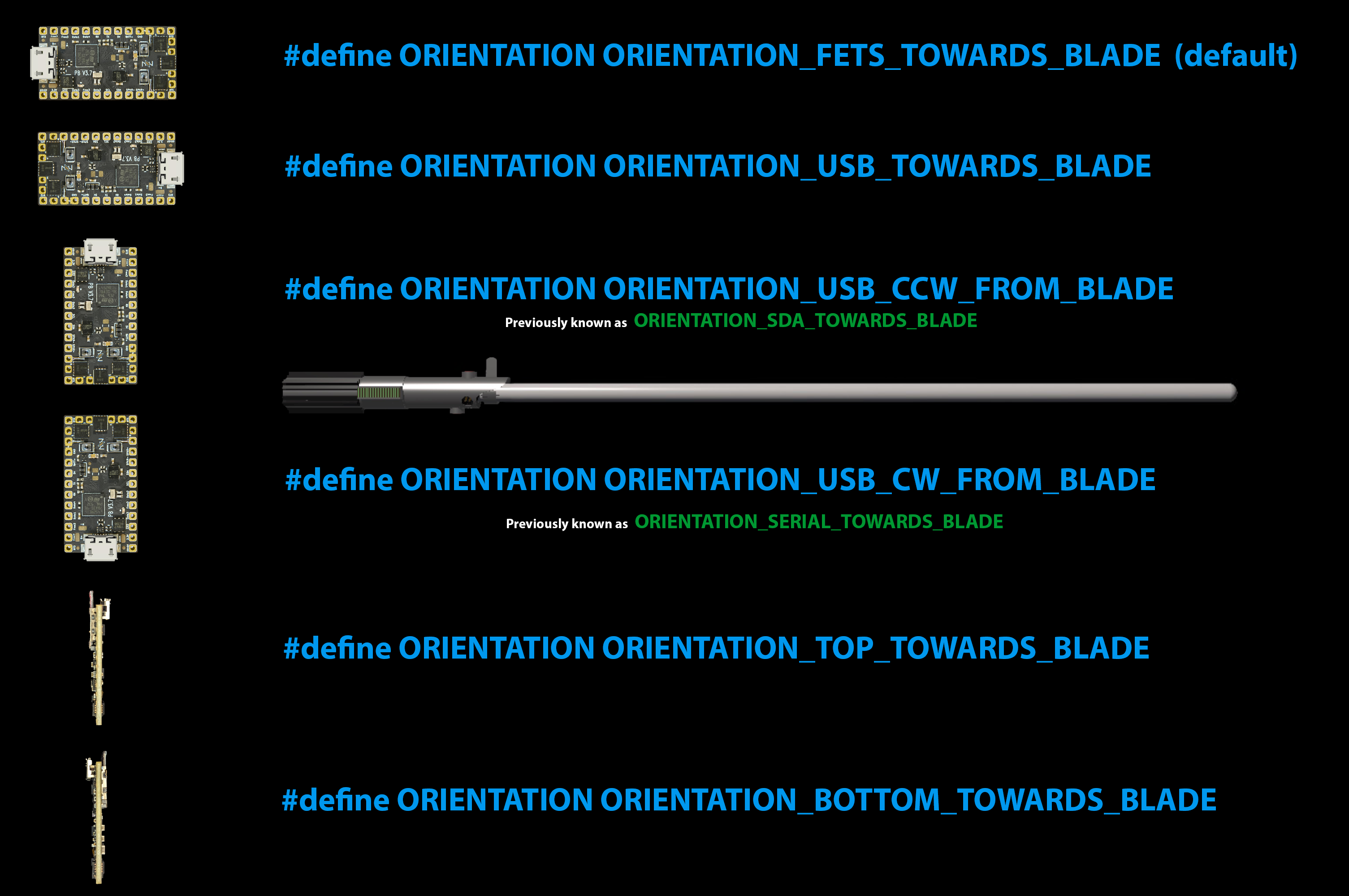
This is used to setup how your board is mounted in the saber, primarily for smooth swing and gesture controls. Almost all normal installs will be either “FETs Towards Blade” (USB towards pommel, the FETs are the black chips around the LED pads) or “USB Towards Blade.” There’s a visual reference here.
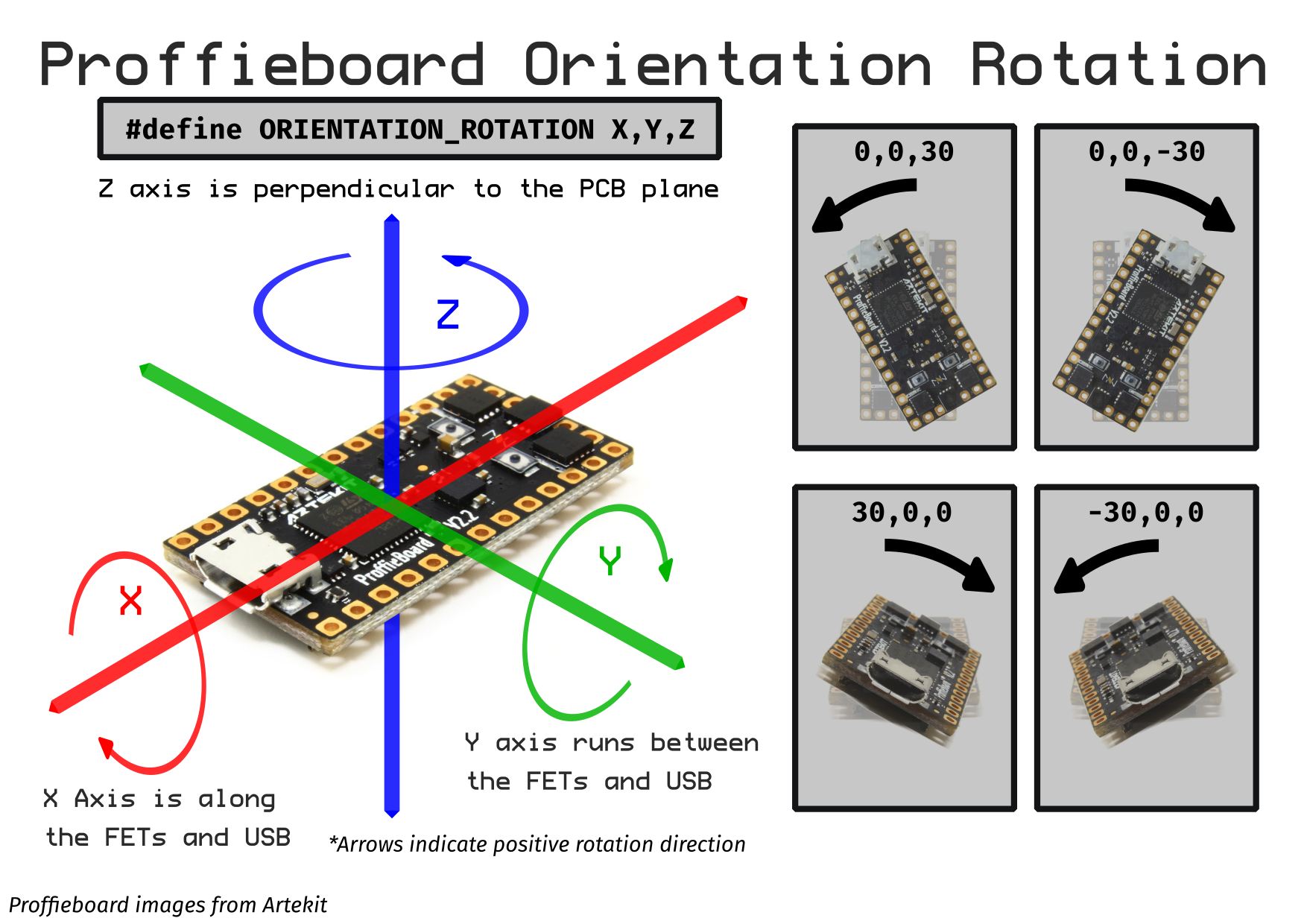
The “XYZ” entries below allow you to tweak the orientation if your board is mounted at an angle. If it is, then you should choose the closest orientation that matches, and then adjust those values as an “offset” from the selected orientation. The angles the offsets correspond to are shown here.
Enable OLED
If you have an OLED display, most of your setup work will be adding BMP/PBM files into your font directories, but you’ll want to check this to make the Proffieboard try to use the OLED in the first place.
Buttons
We’ll touch on this in just a bit.
Audio
Volume
“Max Volume” is particularly important. Setting it too high could permanently damage your speaker, so you should be careful and consult with who you bought your speaker from to know the safe range of values.
Others
The other settings here don’t strictly need to be modified. The only one to really watch out for is “Clash Suppression,” which you may want to tweak along with “Clash Threshold” later.
Custom Options
There are some (advanced) options (“defines”) ProffieOS supports which are not included in ProffieConfig’s UI. Should you need any of them, you can add them in the “Custom Options” dialog.